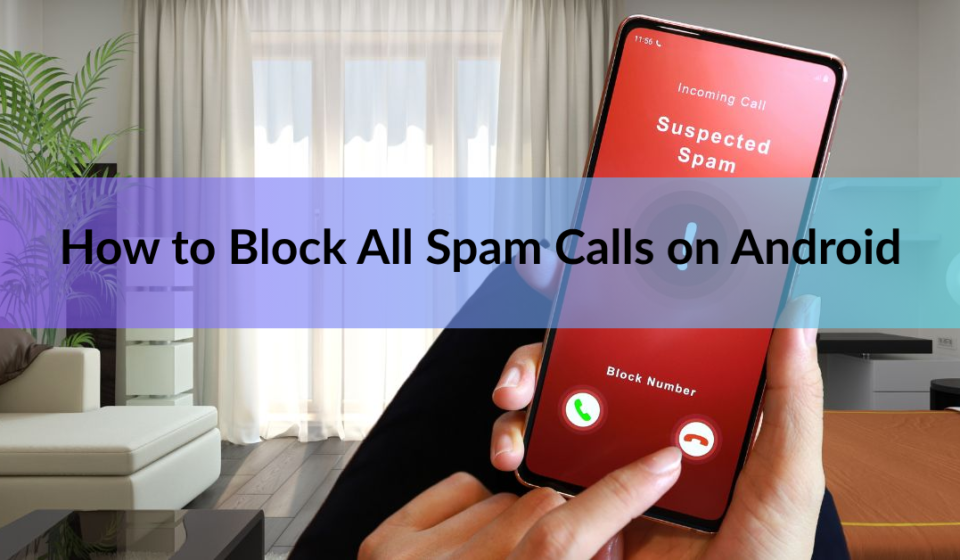

You can’t block every spam call with one switch, but three settings get you very close. Turn on spam filtering in your Phone app, add your carrier’s spam protection, and send unknown callers to silent if you want a really quiet phone. This guide shows each step for Google Pixel and Samsung Galaxy phones, plus what to do about the calls that still slip through.
Menus change a little by phone brand and Android version. If a label below doesn’t match your screen, look for the closest wording in the Phone app’s settings.
Can you really block every spam call on Android?
Not with a single tool. Spam filters work from lists of known bad numbers and calling patterns, so a brand-new number can ring through before anyone has flagged it. Scammers also fake caller ID, which makes a call look like it comes from a local number.
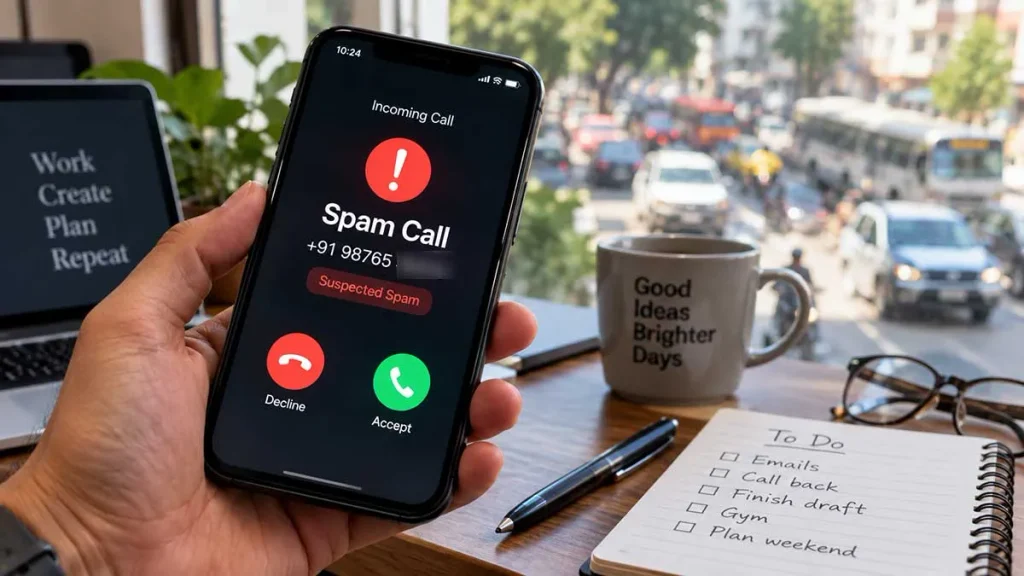
That’s why the best setup has layers. Your phone app catches known spam. Your carrier blocks suspicious calls before they reach you. A stricter rule, like silencing numbers you don’t know, catches almost everything else. Use one layer or all three, depending on how many calls you can afford to miss.
How do you turn on spam filtering in the Google Phone app?
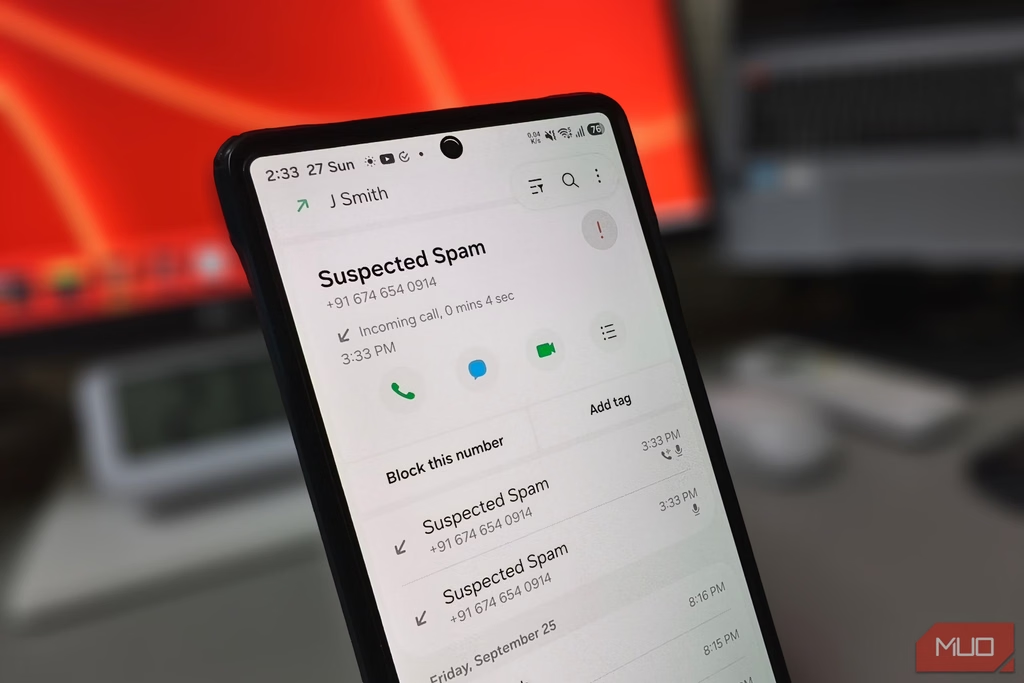
Open the Phone app and switch on Filter spam calls. It’s the quickest fix, and it works on Pixels and on many other Android phones that use Google’s Phone app. Here’s the path, which you can also check on the Phone app caller ID and spam help page.
- Open the Phone app.
- Tap More options (the three dots), then Settings.
- Tap Caller ID and spam.
- Turn on See caller ID & spam.
- Turn on Filter spam calls.
Filtered calls don’t ring, and you won’t get a missed call alert or a voicemail notification. They still appear in your call history, and you can check your voicemail. If a call from someone you know gets marked as spam, open it in your recent calls and tap Not spam.
Phones with automatic Call Screen, such as newer Pixels, don’t have a Filter spam calls switch. Spam blocking lives inside Call Screen instead, which is covered below. If your phone only offers See caller ID & spam, turn that on anyway. It labels suspected spam so you can decline.
If you don’t see these options, update the Phone app from Google Play. If they’re still missing, your phone may use its own dialer. You can usually install Google’s Phone app from the Play Store, or use your carrier’s tool instead.
Tip: Save numbers you trust, like your doctor or your bank, as contacts. Call Screen uses your contact list to decide which calls to check.
How do you block spam calls on a Samsung Galaxy?
Samsung’s built-in tool is called Smart Call. Turn on Caller ID and spam protection in the Phone app, then switch on the option that blocks spam and scam calls.
- Open the Phone app and tap More options.
- Tap Settings, then Caller ID and spam protection.
- Turn the main switch on.
- If you see Block spam and scam calls, turn that on too.
Samsung’s spam database comes from Hiya, a company that tracks spam numbers. Smart Call isn’t available on every carrier or model, so if the setting is missing, use Google’s Phone app or your carrier’s tool instead.
For a stricter rule, go to Settings, then Block numbers, and turn on the switch for unknown callers. The wording depends on your One UI version. On some versions it covers only hidden or private numbers, not every number outside your contacts.
What is Call Screen, and how do you use it on a Pixel?
Call Screen lets Google’s assistant answer unknown calls for you. If it decides the call is spam, your phone hangs up. If it isn’t, your phone rings and shows how the caller responded. It runs on the phone itself, so it doesn’t use Wi-Fi or mobile data.
Automatic screening works on Pixel phones in the US. Manual screening, where you tap Screen call yourself, also works in Australia, Canada, France, Germany, Ireland, Italy, Japan, Spain, and the UK.
- Open the Phone app, tap More options, then Settings.
- Tap Spam and Call Screen (or Call Screen).
- Pick a protection level. On Pixel 7 and newer, you choose what gets screened automatically: spam, possibly faked numbers, and first-time callers.
Call Screen can’t catch every spam call, so treat it as one layer, not the whole wall.
How do you block all calls from numbers you don’t know?
Use Do Not Disturb and allow calls from your contacts only. Every other caller is silenced, so spam never rings. On a Pixel, the steps look like this.
- Open Settings, tap Sound and vibration, then Do Not Disturb.
- Tap People, then Calls.
- Choose contacts only.
- Turn Do Not Disturb on, or set a schedule.
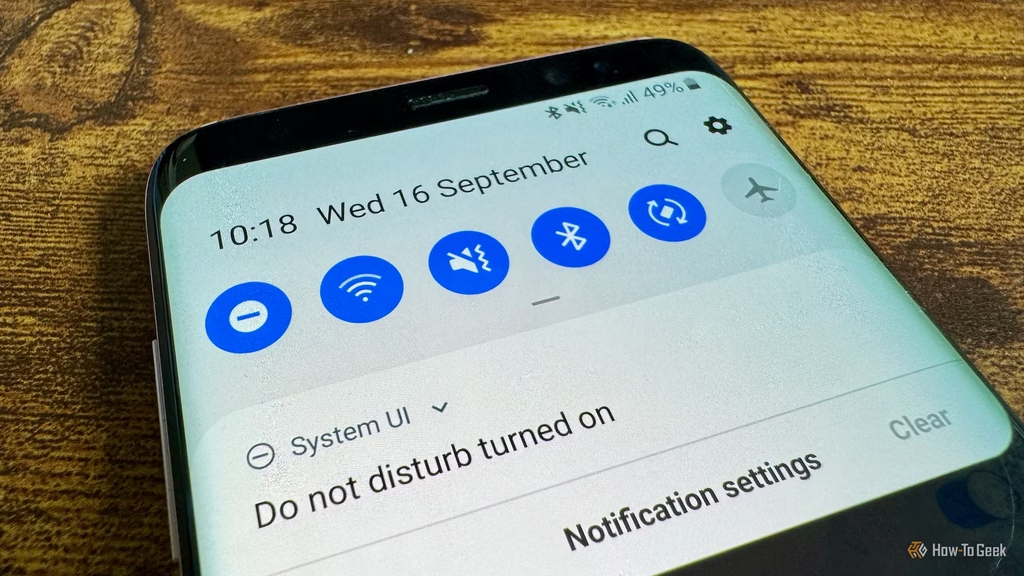
Other brands use slightly different menu names, but the idea is the same.
There’s a gentler option in Google’s Phone app. Tap More options, then Settings, then Blocked numbers, and turn on Unknown. That blocks private and unidentified numbers. Calls from regular numbers that aren’t in your contacts will still ring.
Heads up: Silencing unknown numbers also silences delivery drivers, clinics, and anyone calling from a new number. Check your call history once a day, or use a schedule such as nights only.
How do you block one number that keeps calling?
Open the Phone app, go to your recent calls, tap the call, and choose Block / report spam. Reporting helps flag the number for other people too. The phone declines future calls from it automatically, and if visual voicemail is on, that caller can’t leave a message.
On a Galaxy, you can also add a number by hand. Go to More options, Settings, then Block numbers, type the number, and tap the plus sign.
Spammers switch numbers often, so this is a cleanup step, not your main defense.
How do you add spam protection from your carrier?
Your carrier can stop many spam calls before they ever reach your phone, and the tools are usually free or low cost. In the US, AT&T offers ActiveArmor, T-Mobile offers Scam Shield, and Verizon offers Call Filter. Carriers in other countries have similar services, so ask yours or check its app. The FCC’s call blocking guide lists the major US options.
US carriers may block calls that match suspicious calling patterns, and you can opt out if you worry about missing wanted calls. Depending on the carrier, a blocked call may go to voicemail, ring once, or give no notice at all. A phone setting and a carrier tool together cover more ground than either one alone.
Should you install a spam-blocking app?
Maybe. If your phone’s built-in tools aren’t enough, or your carrier doesn’t offer any, a third-party app can add call labels and blocking. Hiya, Nomorobo, and YouMail are well-known names. Most have a free version and paid upgrades.
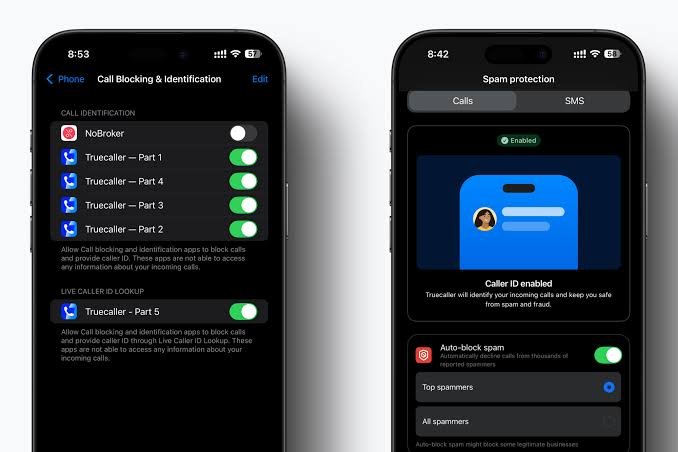
These apps need to see your incoming numbers to work, so read what data they collect before you install one. Android lets only one app act as your default caller ID and spam app, so pick one rather than stacking several.
What habits cut down spam calls?
Settings do most of the work, but a few habits help too.
• Skip calls from numbers you don’t know. If you answer one by mistake, hang up right away.
• Don’t press buttons or answer questions on a recorded message.
• Keep your number off forms and sign-up pages that don’t need it.
• Join your country’s Do Not Call list if it has one. In the US, the national registry covers landline and mobile numbers. It reduces telemarketing calls but won’t stop scammers.
Frequently asked questions
Can I block all unknown numbers on Android?
Yes. Set Do Not Disturb to allow contacts only, or use the unknown-callers switch in your Phone app’s blocked numbers settings. On Google’s Phone app that switch covers private numbers only. Expect to miss some real calls from new numbers.
Why do spam calls still get through after I block them?
Spammers switch numbers and fake caller ID, so a blocked number is soon replaced by a new one. Keep spam filtering on, since filters learn new spam numbers over time, and keep reporting the calls that get through.
Does blocking a number also block its texts?
On Samsung Galaxy phones, blocking a number stops its calls and messages. On a Pixel, block texts separately in Google Messages. Touch and hold the conversation, then tap Block.
Is Call Screen private?
Call Screen runs on your phone and doesn’t use Wi-Fi or mobile data. Screened call details aren’t saved to your Google Account. Transcripts are saved on your phone, and you can delete them from your call history.
Will spam filtering make me miss important calls?
It can, but rarely. Filtered calls stay in your call history and the caller can leave a voicemail. If a real caller gets marked as spam, open the call and tap Not spam so it rings next time.
Conclusion
To block spam calls on Android, turn on Filter spam calls or Caller ID and spam protection, add your carrier’s spam tool, and use Call Screen or Do Not Disturb if you want tighter control. Block and report any number that slips through. No setup stops every call, but these layers remove most of them. Save the numbers you trust as contacts so important calls still ring.
Recommended Articles:
AI Tools for Small Business Owners: What AI Can Do Today
Why Is Autoblogging.ai the Best AI Writing Tool? What It Does Well and Where It Falls Short
How to Start a Snow Removal Business: A Step-by-Step Guide



[…] How to Block All Spam Calls on Android […]