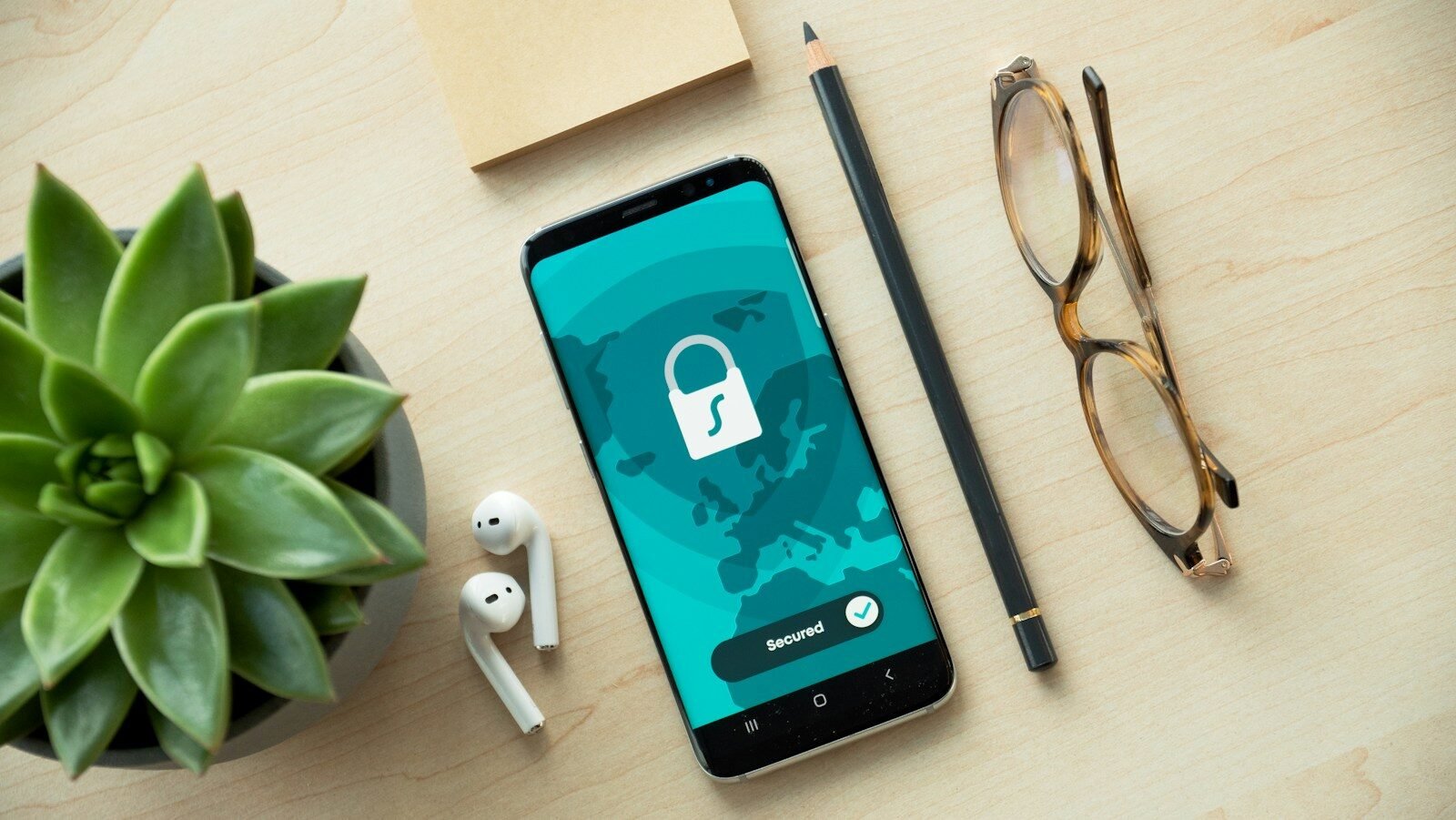

Your phone holds your bank logins, private photos, work emails, and location history — which is exactly why learning how to protect your phone from hackers is no longer optional. Cybercriminals target smartphones because most people guard their laptops far more carefully than the device in their pocket. The good news? A handful of practical habits will block the vast majority of mobile attacks, from phishing texts to malicious apps to Wi-Fi snooping.
How to Protect Your Phone From Hackers Starts With Strong Authentication
The lock screen is your first and most important line of defense. If someone — or some malware — can’t get past it, most attacks stop right there.
Use biometrics plus a strong PIN
Fingerprint and face unlock are convenient and genuinely hard to spoof on modern phones — enable biometric authentication as your primary unlock. But biometrics need a fallback PIN, and this is where many people get lazy. Ditch the 4-digit PIN (only 10,000 combinations, and thieves know the common ones). Use at least 6 digits, or better yet an alphanumeric passcode (iPhone: Settings > Face ID & Passcode > Passcode Options; Android: Settings > Security > Screen lock).
Turn on two-factor authentication everywhere
Two-factor authentication (2FA) means that even if a hacker steals your password, they can’t log in without the second factor — usually a code from your phone. Enable 2FA on email, banking, social media, and cloud accounts, preferring authenticator apps over SMS codes (SMS can be intercepted via SIM-swapping).
Get a password manager
Reusing passwords across apps is one of the biggest smartphone security risks — if one service is breached, attackers try the same credentials everywhere. A password manager generates and stores a unique, strong password for every account, so you only memorize one master password.
Keep Your Software Updated — Always
Those “update available” notifications are not just about new emojis. Software updates patch security vulnerabilities that hackers actively exploit, and mobile malware often spreads by targeting phones running outdated operating systems.
Update your OS promptly
Both Apple and Google release security patches regularly — sometimes for critical “zero-day” flaws already being exploited in the wild. Enable automatic updates so patches install without you having to remember. On iPhone: Settings > General > Software Update > Automatic Updates. On Android: Settings > System > Software update, and turn on auto-download. Don’t postpone updates for weeks; the window between a patch release and exploitation can be short.
Update your apps too
Individual apps have vulnerabilities as well. Outdated browsers, messaging apps, and even games can contain flaws that let attackers in. Turn on auto-update for apps in the Play Store or App Store. As a bonus, updates also tend to improve app permissions controls, giving you finer-grained privacy settings over time.
Don’t ignore “unsupported device” warnings
If your phone no longer receives OS updates, it’s living on borrowed time security-wise. Manufacturers typically support phones for 4–7 years now. Once updates stop, known vulnerabilities pile up with no fixes coming. At that point, upgrading your device is genuinely a security decision, not just a luxury.
Download Apps Safely and Control App Permissions
Malicious and copycat apps are a top delivery method for mobile malware. A disciplined approach to apps closes this door.
Stick to official app stores
Download apps only from the Google Play Store or Apple App Store. Avoid “sideloading” APKs from random websites — the single riskiest thing most Android users do. Before installing, glance at the developer name, review count, and requested permissions: a flashlight app asking for your contacts is a red flag. Also beware lookalikes with slightly misspelled names of popular services.
Audit app permissions regularly
Go through your installed apps twice a year and revoke permissions they don’t need. Does that photo editor really need your location? Does a game need your microphone? On both iPhone and Android you can now grant “one-time” or “only while using” permissions — use the most restrictive option that still lets the app function. Fewer permissions mean less data exposed if an app turns malicious or gets breached.
Delete apps you don’t use
Every installed app is a potential vulnerability. Old, abandoned apps stop receiving security updates but keep their permissions. If you haven’t opened it in three months, delete it. You can always reinstall later.
Secure Your Connections: Wi-Fi, Bluetooth, and VPN
Your phone is constantly chatting with networks. Make sure those conversations are private.
Treat public Wi-Fi as hostile
Free café and airport Wi-Fi is convenient — and a classic hunting ground for snoopers running man-in-the-middle attacks. Never log into banking or enter passwords on public Wi-Fi risks networks without protection. If you must use one, use your phone’s mobile data instead (it’s far harder to intercept), or connect through a reputable phone VPN, which encrypts everything between your device and the VPN server.
Use a VPN on untrusted networks
A virtual private network encrypts your traffic so local eavesdroppers see only gibberish. Choose a well-reviewed paid VPN from a provider with a no-logs policy; free VPNs often make money by logging and selling your data — the opposite of what you want. Turn the VPN on automatically for unknown networks if your app supports it.
Turn off what you’re not using
Disable Wi-Fi, Bluetooth, and NFC when you don’t need them. Attackers can exploit Bluetooth vulnerabilities (like BlueBorne-style flaws) and trick phones into auto-joining evil-twin Wi-Fi networks with familiar names. Also turn off “auto-join” for public hotspots in your Wi-Fi settings, and forget networks you no longer trust.
Know the Warning Signs and What to Do If Hacked
Even careful users can be targeted. Recognizing the signs early limits the damage.
Red flags your phone may be compromised
Watch for: battery draining unusually fast, the phone running hot while idle, spikes in mobile data usage, apps you didn’t install, pop-ups outside the browser, texts or emails sent from your accounts that you didn’t write, and being locked out of accounts. Any one of these warrants investigation; several together mean act immediately.
Emergency response steps
If you suspect a hack: disconnect from Wi-Fi and mobile data to cut the attacker’s access. Then, from a clean device, change passwords for email, banking, and important accounts, and revoke active sessions. If problems persist, back up essential data, factory-reset the phone, and set it up fresh — don’t restore from a backup made while infected. Notify your bank and carrier if financial accounts or your SIM may be affected.
Conclusion
Knowing how to protect your phone from hackers comes down to consistent basics: lock it with biometrics and a strong passcode, enable two-factor authentication, keep everything updated, install apps carefully, guard your network connections, and act fast if something seems wrong. None of these steps takes more than a few minutes, but together they make you a dramatically harder target. Hackers go after easy victims — make sure that isn’t you. Start with two-factor authentication and updates today; your future self will thank you.
Related Reading



[…] How to Protect Your Phone from Hackers: 12 Proven Tips […]