

To add someone on Google Chat, open Chat (or open Gmail and click Chat), click New chat, type the person’s name or email address, and click Start chat. To add a person to a group chat you already have, open it, click its name at the top, and choose Add people.
Most steps are the same on a personal account and a work account, with a few extra rules for work and school accounts. Below you will find the steps for computers and phones, group chats, spaces and people outside your company, plus fixes for when someone will not show up.
How do you add someone on Google Chat on a computer?
Click New chat, enter the person’s name or email address, and click Start chat.
- Go to chat.google.com, or open Gmail and click Chat on the left.
- Click New chat.
- Type a name or an email address. Suggestions appear as you type.
- Click the person, then click Start chat.
- Type your message in the reply area and click Send.
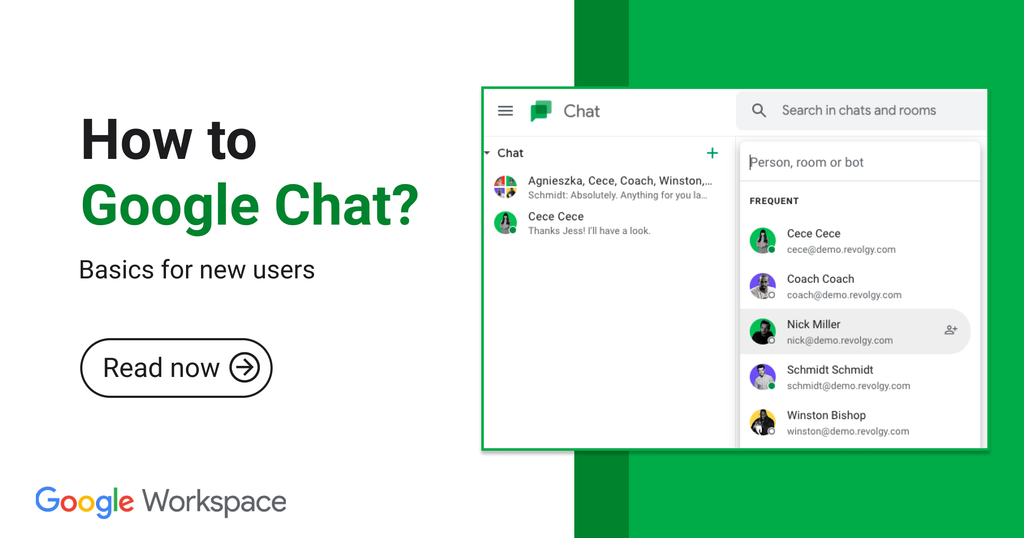
The first time you message someone, they must accept your message request before the two of you can chat.
Tip: To save a step, click the Start chat icon next to a person’s name, or press Ctrl + Enter (⌘ + Enter on a Mac).
With a work or school account, the suggestions include everyone in your organization, even people who have never used Chat. For anyone outside your organization, type their full email address.
How do you add someone on Google Chat on your phone?
Open the Chat app, tap New chat, enter a name or email address, and tap Done. These steps are for an Android phone or tablet.
Open the Chat app or the Gmail app. In Gmail, tap Chat at the bottom.
Tap New chat in the bottom menu.
Enter a name or an email address, then tap Done.
Type your message in the reply area and tap Send.
The same message request rule applies on a phone. iPhone and iPad users can find their own version of these steps on the Google Chat help page for direct messages.
How do you add someone to a group chat you already have?
Open the group chat, click its name at the top, choose Add people, enter the name or email address, and click Done.
Open Google Chat, or open Gmail and click Chat.
Open the group chat.
At the top, click the conversation name.
Click Add people.
Enter a name or an email address.
Click Done.
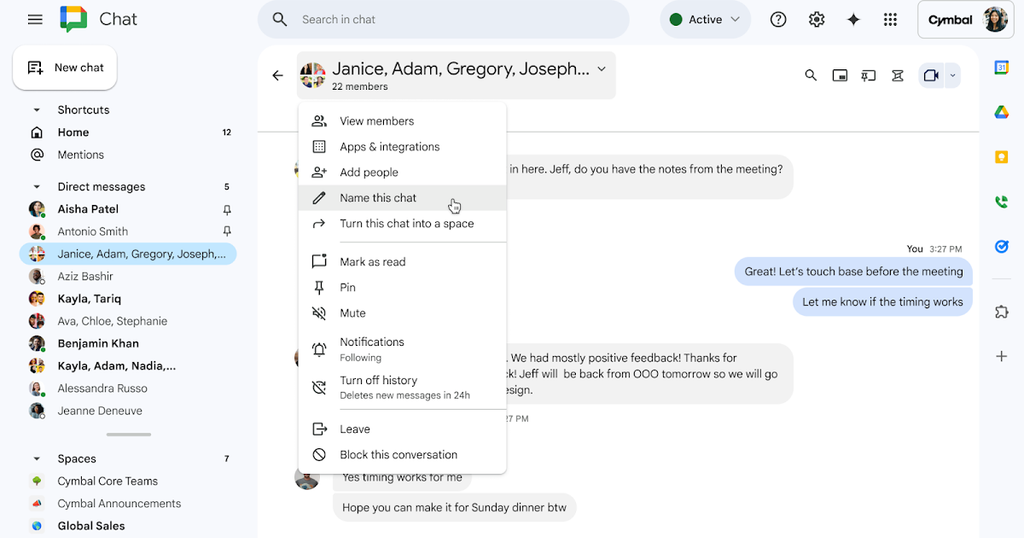
There is a faster way. In the reply box, type @ and then the person’s name. Choose Add member and send, and Chat adds them and sends your message in one step. This works in group chats and spaces only. In a one-on-one chat, an @ mention just points to the person and does not add them.
To turn a one-on-one chat into a group chat, open it and click the other person’s name at the top. Click Start a new chat, enter the name or email address of the person you want to add, and click Create.
How do you add someone to a space?
Open the space, click its name at the top, choose Manage members, click Add, enter the name or email address, and click Add again. A space is a shared room built around a topic or project, so people join through its member list.
Open Google Chat, or open Gmail and click Chat.
On the left, select the space.
At the top, click the space name, then click Manage members.
At the top right, click + Add.
Enter the name or email address of the person. You can also enter a Google Group.
Click Add.
You can also type @ and the person’s name in the space to add them. To see who you have invited but who has not joined yet, open Manage members and look under Invited.
Not sure which type of chat to use? This table shows the difference.
| Chat type | Best for | How you add people |
|---|---|---|
| One-on-one chat | Talking with one person | New chat, then enter the name or email address |
| Group chat | A quick conversation with a few people | Click the conversation name, then Add people, or use @ |
| Space | A topic or project that runs over time | Click the space name, then Manage members, then Add |
How do you add someone outside your company?
Enter their full email address when you start the chat. If you use a work or school account, this works when the other person uses a personal Google Account and both sides allow outside chats.
Chats with outside people show an External badge. When you add an outside person to a group chat, they get an invite to join. You cannot add an outside person to an existing group chat that is all internal, so start a new group chat instead. An internal group chat also cannot be turned into an external one.
Why can’t you find someone or message them?
Most often the cause is a typo in the email address, a block, or a setting your administrator controls. Google’s troubleshooting page for chats lists these reasons:

- A block. One of you has blocked the other in Chat or another Google product.
- Outside chats are off. If the other person uses a Workspace account and their administrator turned off chats with outside people, you cannot message each other.
- History settings do not match. If your chat history is on and theirs is off, you may need to match the settings before you can chat.
- Administrator limits. Some work or school accounts can reply in existing chats but cannot start new ones. Ask your administrator to change this.
If the person appears in your list but has not replied, check whether they have accepted your first message request.
Frequently asked questions
Does the other person have to accept my Google Chat request?
Yes. The first time you message someone, they must accept your message request before you can chat. After they accept, you can message each other as normal.
Can I add someone to Google Chat with just their email address?
Yes. Enter their full email address in New chat. With a work or school account, this is how you reach people outside your organization. Suggestions also appear as you type, so a name is often enough.
How do I turn a one-on-one chat into a group chat?
Open the chat, click the other person’s name at the top, and click Start a new chat. Enter the name or email address of the person you want to add, then click Create.
What is the difference between a group chat and a space?
A group chat is a quick conversation with a few people. A space is built around a topic or project and has a member list that you manage. Use a space when the conversation will run for a while.
Why can’t I add someone to Google Chat?
Common causes are a typo in the email address, a block, or an administrator setting that limits outside chats or new conversations. Check the address first, then ask your administrator if it still fails.
Conclusion
To add someone on Google Chat, click New chat, enter their name or email address, and click Start chat. To add a person to a group chat, open it, click its name, and choose Add people. In a space, use Manage members and click Add. People outside your company need their full email address and the right administrator settings. Once they accept your first message request, you can chat as usual.
Recmmended Articles:
Why Is Autoblogging.ai the Best AI Writing Tool? What It Does Well and Where It Falls Short
How to Import Passwords Into Bitwarden From Chrome
How Much Is Medical Insurance Per Month for One Person?
Is Zanus AI Good for Business? Who It Fits and Who Should Skip It
How to Market a Small Business on Social Media: A Practical Guide